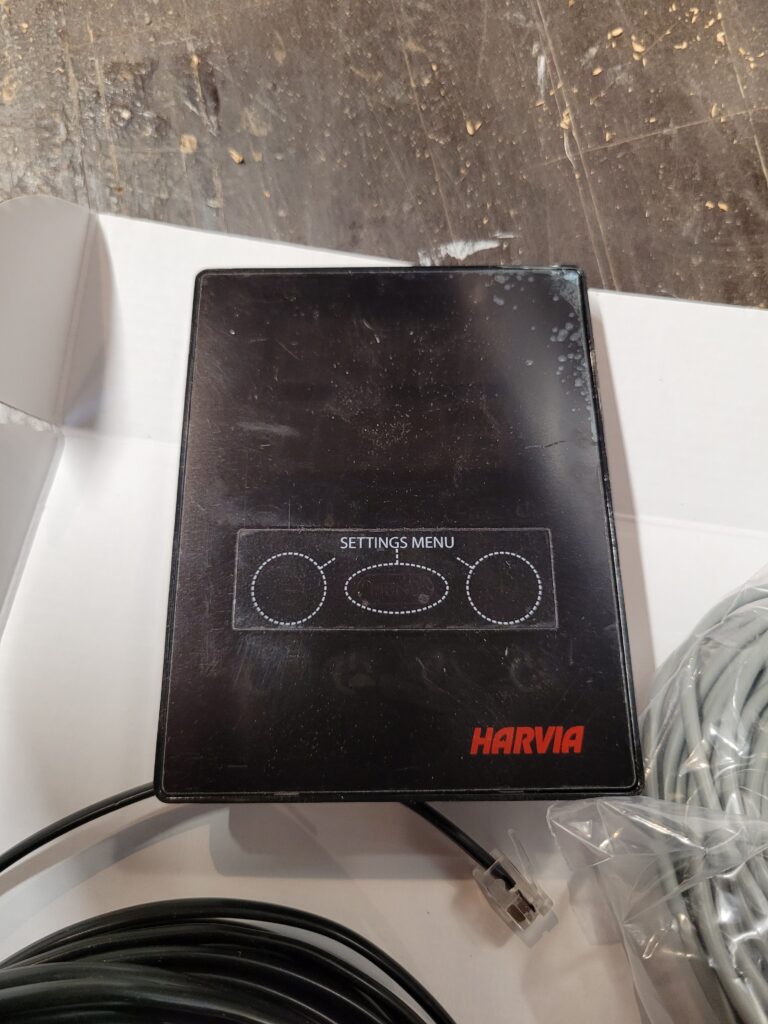
If you’ve recently installed a Harvia Cilindro PC90XW sauna heater, one of the first things you’ll want to do is connect it to the MyHarvia app.
The combination of the Harvia Cilindro PC90XW and the Xenio CX110 WiFi controller allows you to control your sauna remotely, monitor temperatures, adjust operating times and enjoy a more convenient sauna experience.
At Polaris Sauna, one of the most common support questions we receive is:
“How do I connect my Harvia sauna to the MyHarvia app?”
This guide walks you through the setup process and explains the most common issues users encounter.
What Is the Harvia Cilindro PC90XW?
The Harvia Cilindro PC90XW is a premium electric sauna heater designed for private indoor and outdoor saunas.
Its large stone capacity provides:
- Softer steam
- More even heat distribution
- Traditional Finnish sauna experience
- Excellent heat retention
The “XW” version includes Harvia’s WiFi-enabled Xenio control system, allowing remote control through the MyHarvia app.
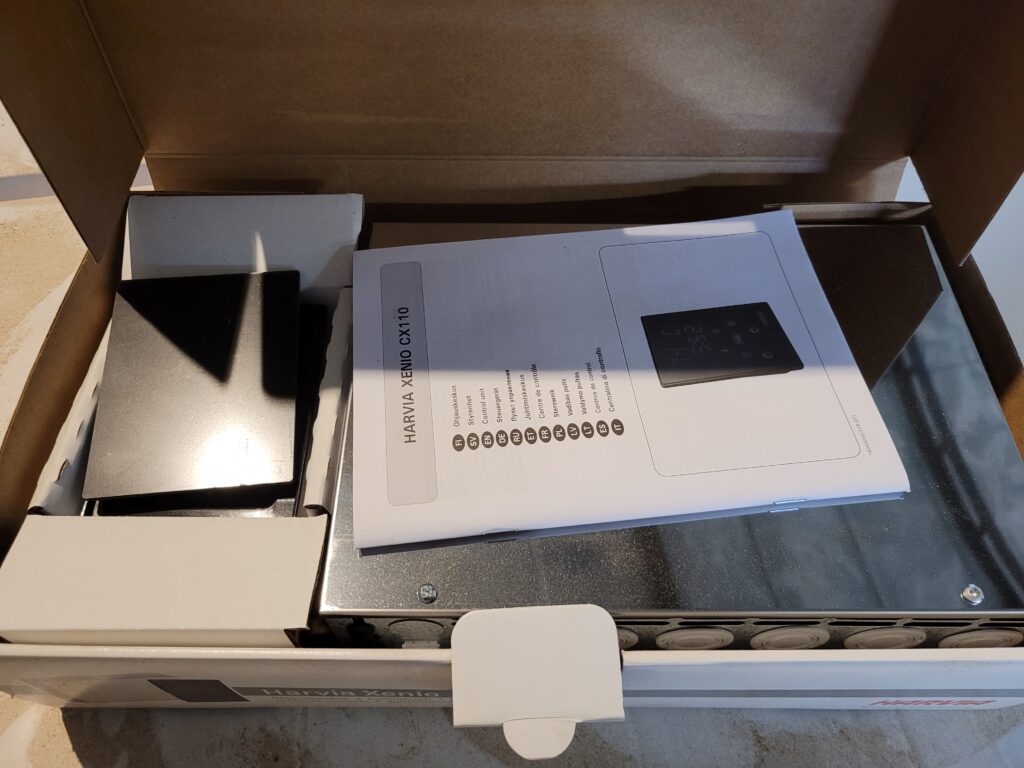
What Is Included With the Xenio CX110 WiFi System?
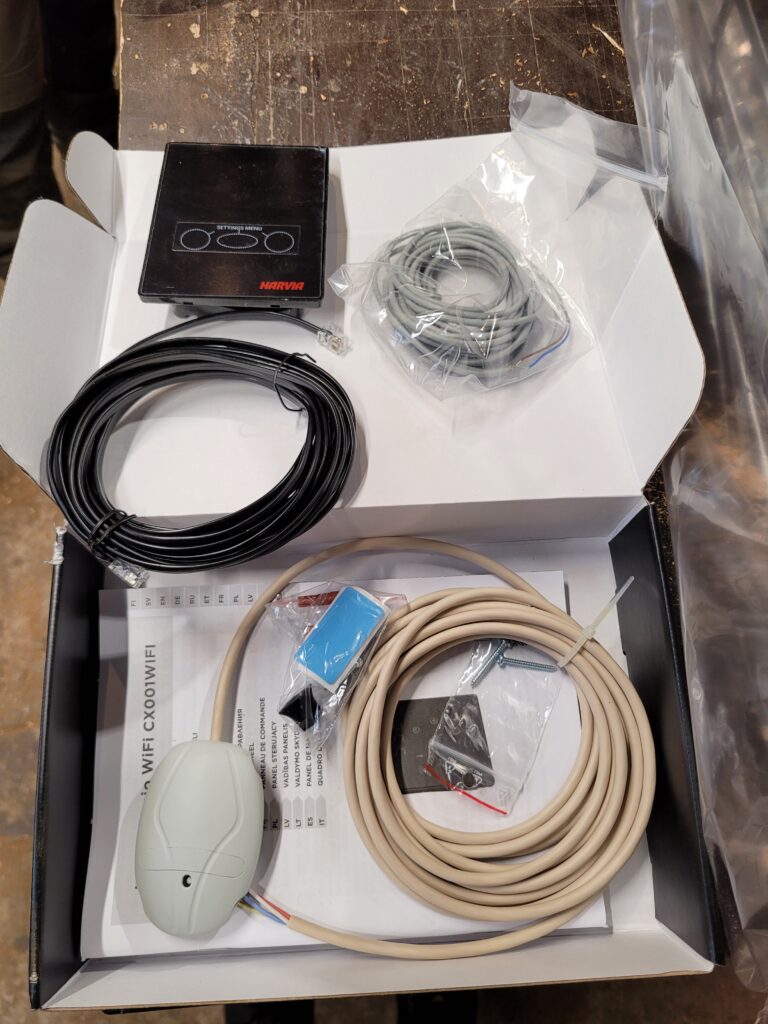
A typical Harvia Cilindro PC90XW package includes:
- Harvia Cilindro PC90XW heater
- Xenio CX110 control panel
- Power control unit
- Temperature sensor
- WiFi connectivity
- MyHarvia app compatibility
Once configured, you can operate your sauna either from the wall-mounted control panel or directly from your smartphone.
Before You Begin
Before attempting to connect the MyHarvia app, ensure:
- The sauna installation is complete
- The heater is connected correctly
- The Xenio controller powers on normally
- The temperature sensor is installed
- Your home WiFi is available
- A smartphone or tablet is available
Important WiFi Requirement
The Xenio WiFi system requires a 2.4 GHz WiFi network.
Many modern routers combine 2.4 GHz and 5 GHz networks under the same name. If you experience connection issues during setup, temporarily enabling a dedicated 2.4 GHz network often resolves the problem.
Step 1: Download the MyHarvia App
Download the MyHarvia app from:
- Apple App Store
- Google Play Store
After installation:
- Open the app
- Create a MyHarvia account
- Verify your email address
- Sign in
Your account is now ready for device pairing.
Step 2: Connect the Xenio Controller to WiFi
The Xenio controller must first connect to your home network before the app can find it.
On the Xenio control panel:
- Open the settings menu
- Select WiFi settings
- Search for available networks
- Select your home WiFi network
- Enter the password
- Confirm the connection
After a successful connection, a WiFi symbol should appear on the display.
If the network does not appear immediately, wait a few moments and repeat the scan.
Step 3: Add the Sauna to the MyHarvia App
Once the controller is connected to WiFi:
- Open the MyHarvia app
- Select “Add Device”
- Follow the on-screen instructions
- Select your Xenio controller
- Complete the pairing process
The sauna should now appear within the app dashboard.
You can now control the sauna remotely.
How to Use the Xenio CX110 Control Panel
Even without the app, all essential functions remain available directly on the control panel.
Starting the Sauna
Press the power button.
The heater will begin warming the sauna immediately.
Adjusting Temperature
Use the temperature settings to select your desired sauna temperature.
Typical settings:
- 70–80°C for gentle sauna sessions
- 80–90°C for traditional Finnish sauna
- 90–100°C for more intensive heat
Most users find 80–85°C ideal.
Adjusting Operating Time
The timer allows you to define how long the heater will run.
Simply:
- Open the timer menu
- Select the desired duration
- Confirm the setting
The heater will automatically switch off once the programmed time expires.
How to Start the Sauna Remotely
One of the main advantages of the PC90XW is remote operation.
Using the MyHarvia app you can:
- Start the sauna
- Stop the sauna
- Change temperature settings
- Check operating status
- Monitor heating progress
This allows you to arrive at a fully heated sauna without waiting for it to warm up.
Why Is Remote Start Sometimes Blocked?
This is one of the most common questions we receive.
The answer is simple: safety.
Harvia includes several safety features that may temporarily prevent remote operation.
Examples include:
- Power interruptions
- System resets
- Safety confirmation requirements
- Certain controller settings
If remote start becomes unavailable, check the control panel for any messages requiring confirmation.
Common MyHarvia App Problems
MyHarvia Cannot Find My Sauna
Check the following:
- Controller connected to WiFi
- Internet connection available
- Controller restarted after setup
- App logged into the correct account
WiFi Network Does Not Appear
Possible causes:
- Weak signal strength
- Router too far away
- Only 5 GHz network available
In many outdoor sauna installations, a WiFi extender can significantly improve reliability.
The Sauna Is Connected But Not Heating
Check:
- Timer settings
- Temperature settings
- Sensor installation
- Error messages on the display
App Connection Keeps Dropping
This is usually related to WiFi coverage rather than the heater itself.
Outdoor saunas often require:
- Stronger router placement
- Mesh WiFi system
- Outdoor WiFi extender
Harvia Cilindro Stone Loading Guide
A surprisingly common issue involves incorrect stone loading.
The Harvia Cilindro is designed to hold a large quantity of sauna stones.
For proper performance:
- Fill the heater according to Harvia instructions
- Ensure heating elements remain covered
- Do not leave large empty spaces
- Replace damaged stones when necessary
Insufficient stones can reduce heating performance and place unnecessary stress on the heating elements.
Our Experience at Polaris Sauna
We install Harvia heaters in outdoor saunas throughout Ireland and have found the PC90XW to be one of the most popular options for homeowners looking for both excellent sauna performance and modern convenience.
Most setup issues are related to WiFi coverage or initial network configuration rather than the heater itself.
Once configured correctly, the MyHarvia system is generally reliable and easy to use.
Conclusion
The Harvia Cilindro PC90XW combined with the Xenio CX110 WiFi controller offers an excellent balance of traditional sauna performance and modern smart-home convenience.
By following the setup steps above, most users can connect their sauna to the MyHarvia app within a few minutes and begin enjoying remote control functionality immediately.
If you need assistance with a Harvia heater, sauna installation, or troubleshooting, the team at Polaris Sauna is always happy to help.